Publish a service safely
Before starting, identify the machine running your application, its listening address, its protocol and its port. Only publish an application you are authorized to operate. You do not need to expose the machine's management interface to publish one web service.
1. Verify the backend locally
On the application host, connect to the exact address and port you intend to configure. For a local HTTP backend, a command such as curl -I http://127.0.0.1:3000/ tests that specific listener; replace the port with your application's port. If the agent runs in a container or on another machine, loopback refers to that container or machine, so test from the agent's network context too.
A failed local request is a backend or local network problem. Fix it before adding a public domain. Confirm that authentication works and that the application's admin or debug routes are protected.
2. Enroll the right device
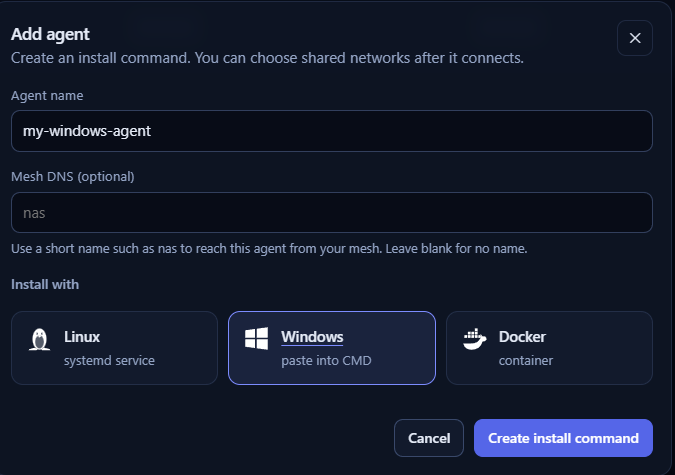
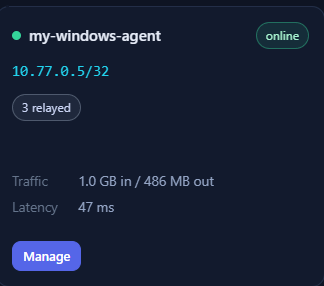
Sign in, open Agents and use Add agent to generate an installation command. Run that command on the machine that should carry the tunnel. It contains enrollment credentials: copy it privately, never into an issue or public guide. Check that the agent appears online and has a recent connection.
Agents initiate their control connections outward. Do not add inbound router rules merely to complete enrollment. If enrollment fails, inspect the command's server address, certificate fingerprint and the host's outbound connectivity.
3. Configure one resource
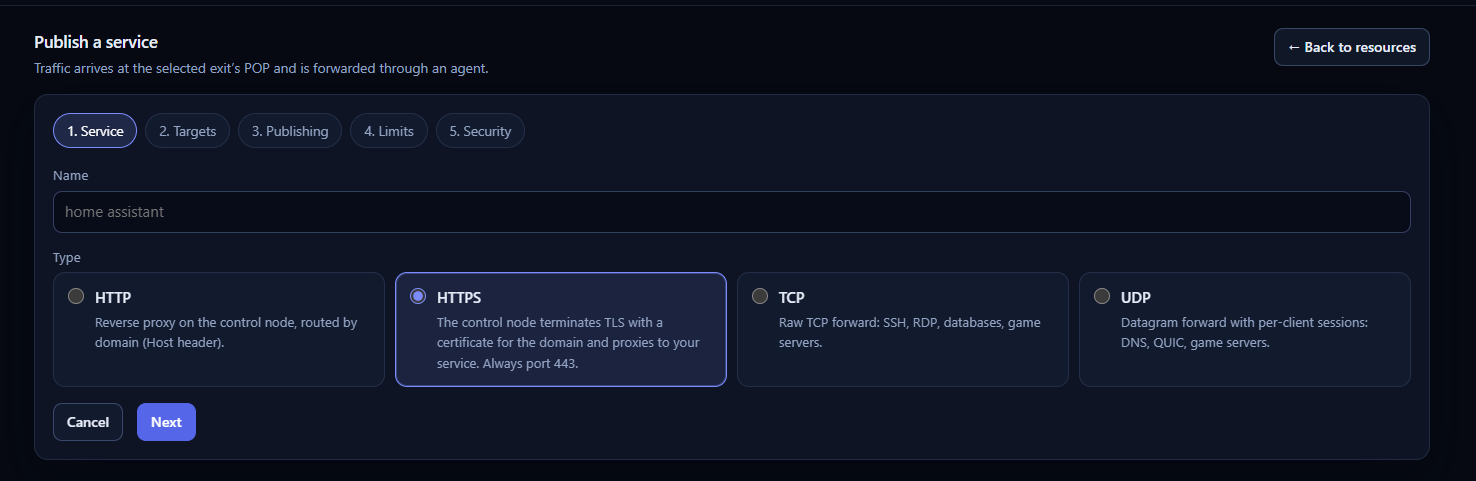
Open Resources and add a resource using the enrolled agent. Choose HTTP or HTTPS for a website; use TCP or UDP only when the application requires that transport. Set the backend host and port to the values you verified from the agent's context. Choose the available publishing exit, then configure your own verified domain or an available public subdomain.
For your own domain, its DNS must point to the selected public exit. The control panel's location and the resource's publishing exit are different choices. Do not assume that copying the panel's IP address publishes your service on the intended exit.
4. Test the outside path
From a separate internet connection, request the public hostname or assigned transport port. Check the HTTPS certificate against the actual hostname. Compare the request time and result with the resource's request log and your backend log. A proxy error with an online agent often indicates an unreachable backend address, a wrong port or a backend protocol mismatch.